Understanding Local and Domain Group Policies
Group Policies are Microsoft Windows features that enable administrators to manage and secure both user and computer settings across the Active Directory (AD) environment. The configurations are organized into Group Policy Objects (GPOs) that are applied to users or computers based on the GPO's specified scope. Local and domain Group Policies differ from each other by the structure and size of the organization.
Local Group Policy vs. domain Group Policy
The difference between local and domain Group Policies is as follows.
| Local Group Policy | Domain Group Policy |
|---|---|
| Local policies are applied to an individual computer. | Domain Group Policies are applied to multiple computers and users within a network. |
| These policies are managed through the Local Group Policy Editor (gpedit.msc). | These policies are managed centrally using the Group Policy Management Console (GPMC) in AD. |
| These policies are stored on the local computer and are separate from AD. | These policies are created and applied at the domain level. |
| These policies are suitable for stand-alone computers or environments where centralized management is not necessary. | These policies are ideal for larger organizations where policies need to be consistently enforced across numerous systems. |
How to create a local Group Policy
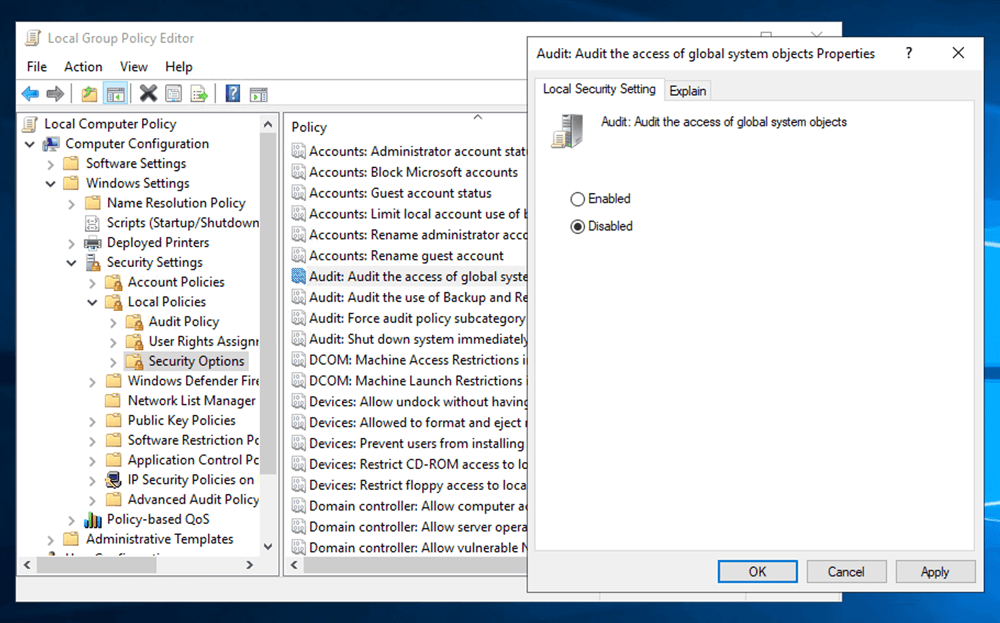
- Click Start and type gpedit.msc.
- In the Local Group Policy Editor, navigate to Computer Configuration > Windows Settings > Security Settings > Local Policies.
- Expand the desired category and choose the specific policy you wish to configure.
- Double-click the policy and choose whether to enable, disable, configure, or leave it unconfigured.
- Click Apply and then OK.
How to create a domain Group Policy
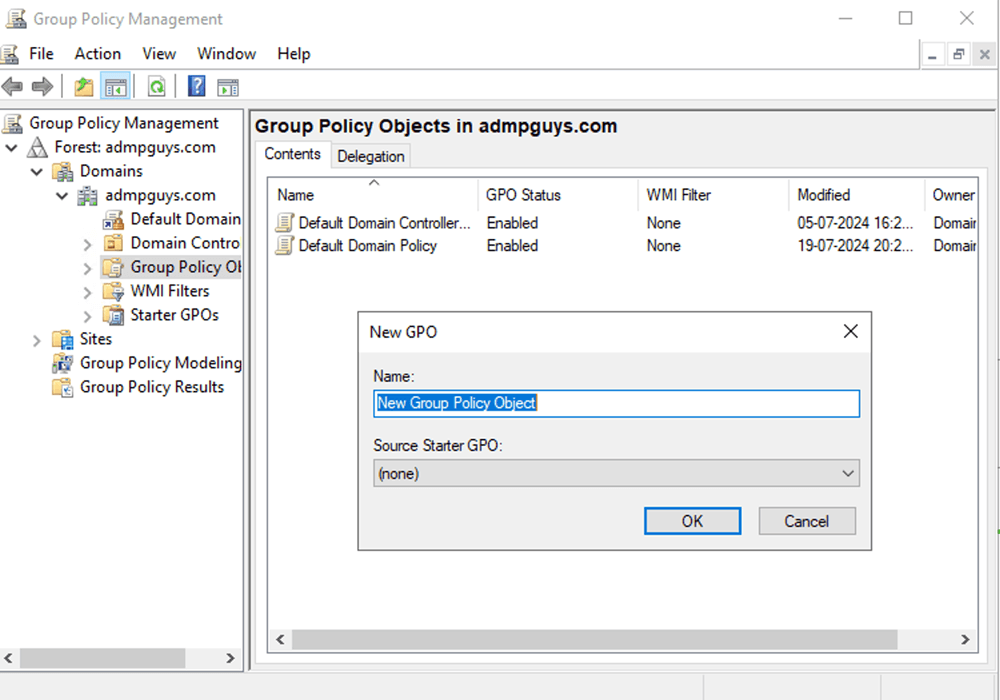
- Open the GPMC.
- In the left pane, navigate to the Group Policy Objects folder under your domain.
- Right-click and choose New to create a new GPO.
- Give the GPO a suitable name.
- Right-click it and choose Edit.
- In the Group Policy Management Editor, you can configure the policy settings under Computer Configuration or User Configuration.
Managing Group Policies using ADManager Plus
ADManager Plus, unlike the native GPMC, is a comprehensive GPO management and reporting tool. It allows administrators to create, modify, and manage Group Policies from a single console. The user-friendly interface simplifies the complex process of managing Group Policies, making it easier to maintain consistency across the organization.
With ADManager Plus, administrators can manage GPO links, enable or disable user and computer configurations, and more. This tool not only makes GPO management effortless but also saves administrators valuable time, making it an essential tool for IT teams.