ACLs in Active Directory: A complete guide
Many major breaches start with something as small as a permission mistake. Access control lists (ACLs) are those permissions that decide who can access what inside Active Directory. When configured right, they quietly keep your network safe. When they're wrong, they can open doors you didn't even know existed.
An ACL is a list of permissions tied to an Active Directory object, like a user, group, folder, or file. It tells the system who can do what.
- Some can only read the object.
- Others can write or modify it.
- A few have full control.
ACLs define these boundaries at a granular level for every object in Active Directory.
Why were ACLs introduced in Active Directory?
When Microsoft designed Active Directory, it knew one size wouldn't fit all. So it introduced ACLs to enforce object-level control, ensuring that only authorized users and groups can view, modify, or manage particular Active Directory objects.
Types of ACLs
You'll come across different types of ACLs depending on what you're working with:
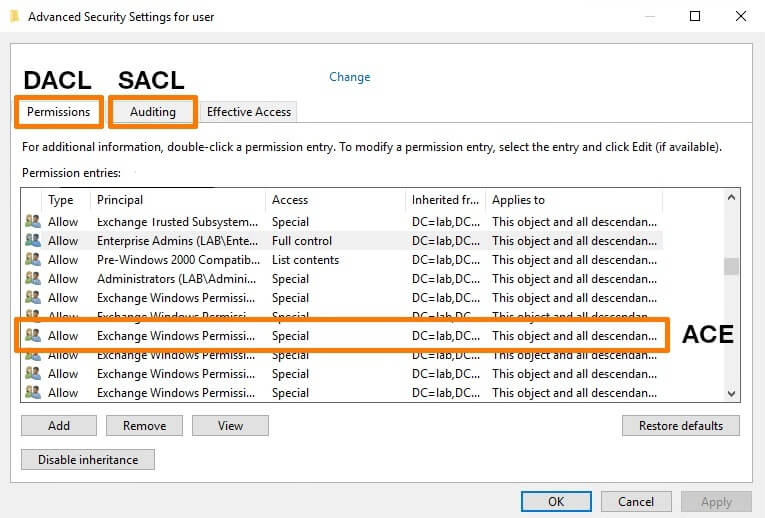
- Discretionary ACLs (DACLs) define who can access an object and what they can do.
- Example: John can read and write a shared folder; Jacob can only read it.
- System ACLs (SACLs) log successful or failed access attempts for auditing.
- Example: Failed attempts to delete files in the finance folder appear in the security log.
- Object ACLs control permissions for specific Active Directory objects like users or groups.
- Example: TheHR team can edit user details; the IT team can reset passwords.
- Directory service ACLs manage permissions across Active Directory structures like organizational units (OUs) or domains.
- Example: Sales admins can create users only within the sales OU.
ACLs vs. ACEs
Each ACL isn't a single rule; it's a collection of smaller entries called access control entries (ACEs). Every ACE defines who has permission and what they can do. Together, all these ACEs make up the full permission set for that object.
Now, ACLs don't always start from scratch. Many permissions are inherited from a parent object; for example, an OU can pass down its permissions to all the users or computers inside it. This inheritance saves time and keeps permissions consistent across a department or folder, but it can also lead to surprises, like a group having unintended access because of a higher-level inheritance. That's why in the Advanced Security Settings, you'll see options to inherit permissions, disable inheritance, or convert inherited permissions into explicit ones. Disabling inheritance means the object stops receiving permissions from its parent, giving you full control but also more responsibility to manage it manually.
When you dig deeper into the Advanced Security Settings, you'll also notice something called Special permissions. These go beyond the basic read or write settings. They let you define detailed actions, like change permissions, take ownership, or delete subfolders and files. These Special permissions are what give administrators fine-grained control, which is useful when standard permission levels don't quite fit what you need.
How to configure ACLs in Active Directory
You can manage ACLs in the following ways:
- Using ADUC
- Using PowerShell
- Using an Active Directory management and reporting tool like ADManager Plus
Using ADUC
- Open Active Directory Users and Computers (ADUC).
- Click View > Advanced Features.
- Right-click the object you want to modify and select Properties.
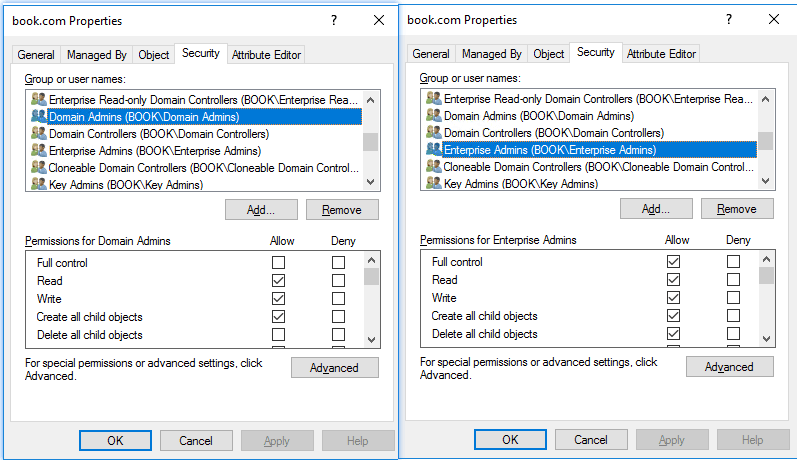
- Click the Security tab to view the existing permissions.
- Click Add to create a new permission entry or Edit to modify an existing one.
- Choose Group or user names and check Allow or Deny for the specific permissions.
- Click Advanced to manage the inheritance and scope or to add auditing entries (a SACL).
- Click Apply > OK to save the configuration.
Using PowerShell
You can manage ACLs with cmdlets like Get-Acl and Set-Acl. Here's an example that grants John Doe read-only access to the FinanceData folder:
 $acl = Get-Acl "C:\FinanceData"
 $rule = New-Object System.Security.AccessControl.FileSystemAccessRule("JohnDoe","Read","Allow")
 $acl.SetAccessRule($rule)
 Set-Acl "C:\FinanceData" $acl
The role ACLs play in security and compliance
In 2025, several major breaches were traced back to misconfigured ACLs in Active Directory. Microsoft's CVE-2025-29810 revealed how poor ACL validation could lead to SYSTEM-level privilege escalation.
Frameworks like HIPAA, SOX, the NIST CSF, and the GDPR now require proof that access to sensitive data is restricted, monitored, and reviewed.
Auditors often ask three questions:
- Who has access?
- Why do they have it?
- When was it last reviewed?
ACLs are meant to protect, but poor management can easily turn them into attack paths. To prevent that, every organization should follow a set of clear, consistent best practices.
ACL best practices
- Follow the principle of least privilege: Give users only the access they absolutely need to do their jobs. This limits the risks of insider threats and compromised accounts. Review permissions regularly to ensure access hasn't quietly increased over time.
- Use security groups instead of individual accounts: Assign permissions to groups, not to individual users. This makes it easier to manage, review, and revoke access when roles change. For example, when someone moves departments, you just update their group membership instead of editing multiple ACL entries.
- Regularly audit and review ACLs: Permissions tend to pile up. Regular reviews help you find and fix unnecessary or outdated access. Schedule audits so your ACLs always match what's really needed.
- Document permission changes: Keep a record of who changed what, when, and why. It helps with audits, troubleshooting, and tracing how a permission issue started.
- Avoid direct permissions: Instead of giving permissions directly to users or files, assign them through groups or roles. This keeps access organized, scalable, and easy to adjust later.
- Leverage SACLs for auditing: SACLs log both successful and failed access attempts. Set them up to track key actions like permission edits or deletions. This is an easy way to maintain visibility and meet compliance standards.
- Automate permission management: Manual changes lead to mistakes. Use automation to enforce consistent permissions, clean up unused access, and trigger updates when roles or departments change.
- Monitor privileged accounts closely: Admin and service accounts have wide access. Keep an eye on their activity, limit how long they stay active, and flag anything unusual. These accounts should never fly under the radar.
- Clean up inactive or orphaned accounts: Accounts that belong to ex-employees or unused systems are security risks. Review your directory regularly and disable or delete anything that's no longer needed.
In large environments, implementing these best practices manually can take days. Automation and visibility are no longer optional; they're essential.
How to simplify ACL management in Active Directory
Manual ACL management is time-consuming and error-prone, especially when permissions, compliance, and delegation span multiple servers and OUs. That's where ADManager Plus comes in.
- Sign in to ADManager Plus.
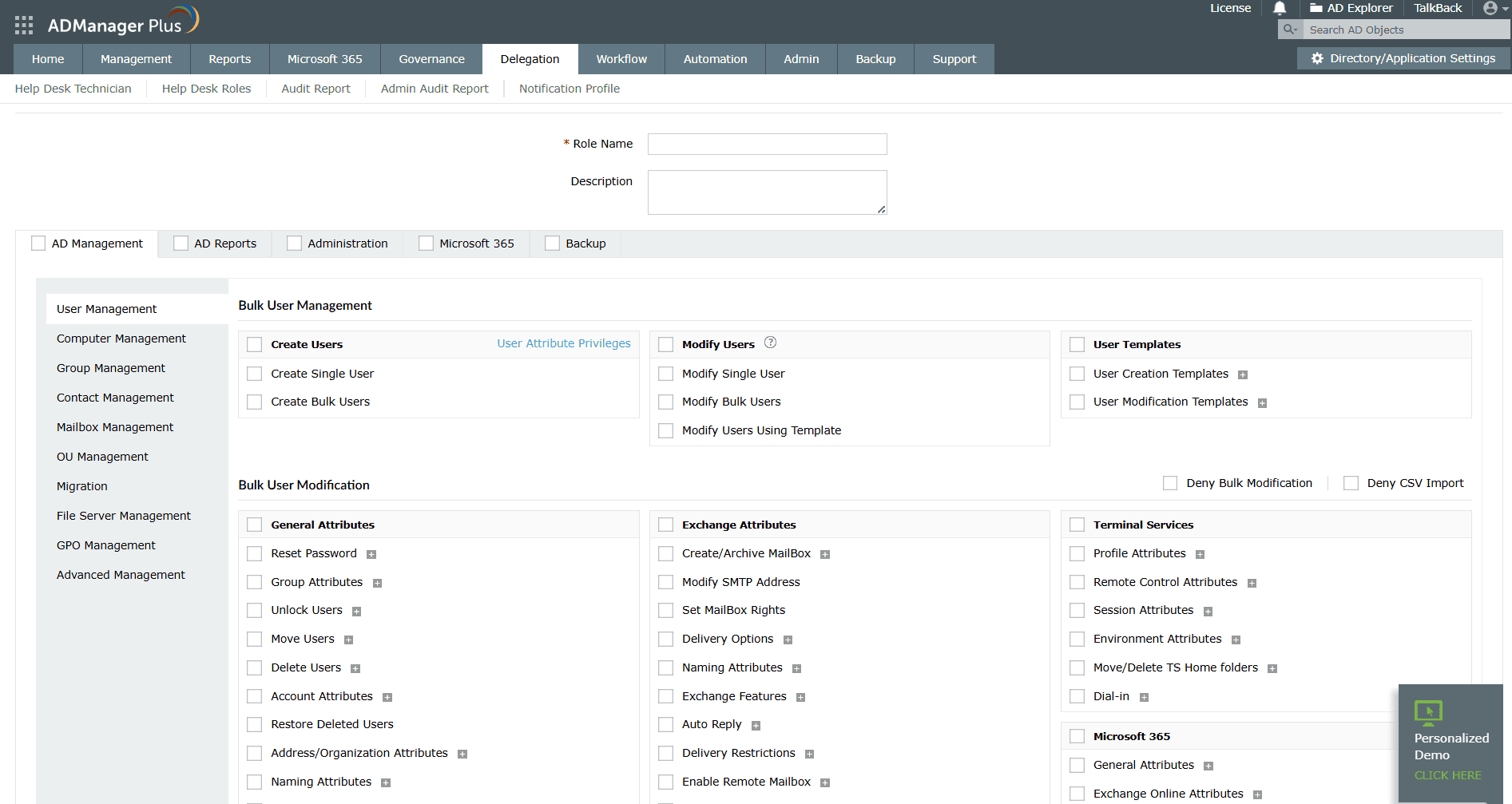
- Go to Delegation > Help Desk Delegation > Help Desk Roles.
- Click + Create New Role.
- Enter a role name.
- Choose the category and the specific task you want to delegate.
- Go to Delegation >Help Desk Delegation >Help Desk Technicians.
- Click + Add New Technician to create a new technician.
- Assign the newly created role to the technician for the required OU.
Benefits of using ADManager Plus to manage ACLs in Active Directory
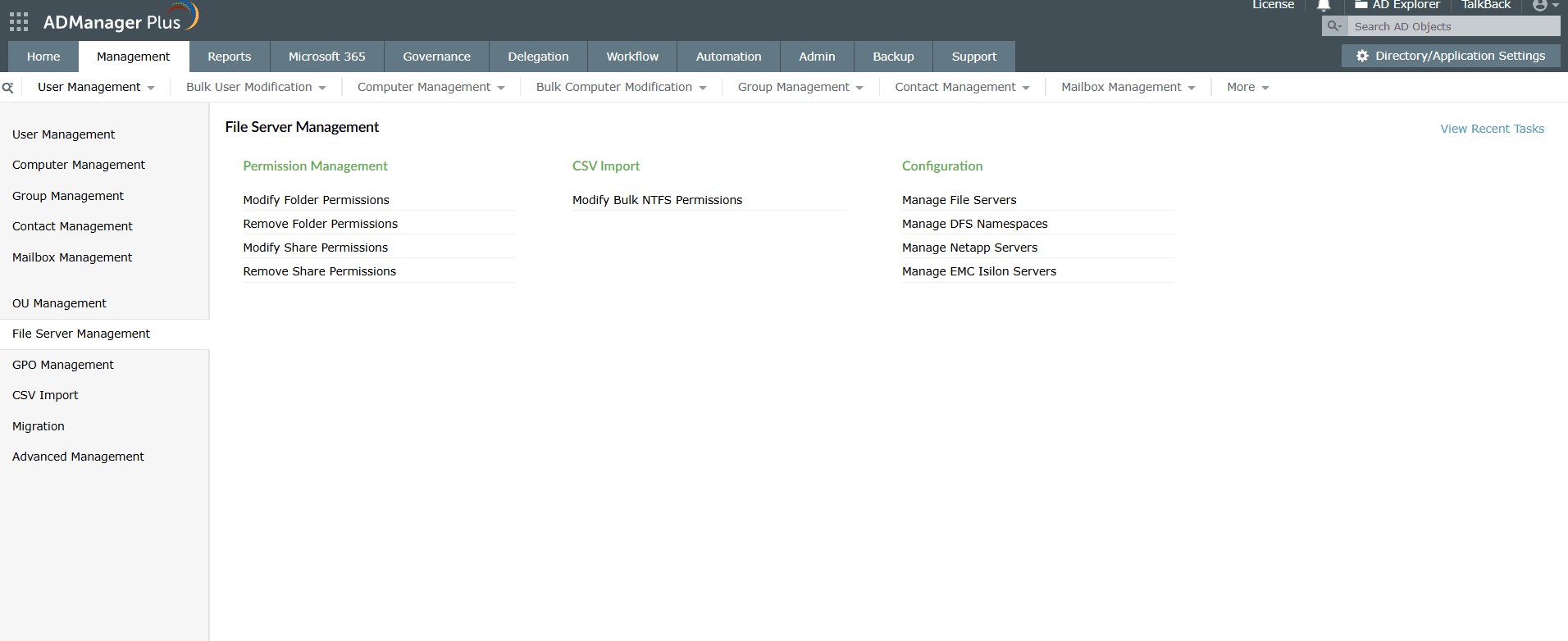
Centralized file server management
Modify and manage NTFS and share permissions in bulk across multiple file servers without scripts.
Comprehensive reporting
Access more than 200 prebuilt reports, including file access, compliance, and stale account reports.
Granular delegation
Delegate specific Active Directory tasks to specific users or groups within chosen OUs without giving unnecessary admin rights.
Event-driven automation
Trigger automated Active Directory actions when specific events occur, even across multiple applications, reducing manual intervention and response times.
Risk exposure management
Detect and review privileged access, identify permission anomalies, and run access reviews to maintain least privilege access.